Friday, November 26, 2004
When shopping for a scanner, you'll want to look for a few important things. Here's a quick summary.
- Resolution: Scanners generally have a lot more resolution than you need, measured in samples per inch (spi). You'll also see terms dots per inch and pixels per inch applied to scanners, even though scanners don't have dots (printers do) or pixels (monitors do). Scanner resolution varies from 600 x 600 spi to 2400 x 2400 spi, or higher. Unless you're scanning tiny, very high resolution originals (such as postage stamps), anything more than 300 to 600 spi is overkill.
- Color depth: This is the number of colors a scanner can capture. The color depth is measured using something called bit depth. For example, a 24-bit scanner can capture 16.8 million different colors; a 30-bit scanner can grab a billion colors, and a 36-bit scanner can differentiate between . . . zillions of colors. You'll never have an original with that many different hues, however. In practice, the extra colors simply provide the scanner with an extended range (called dynamic range) so that the scanner can capture detail in very dark areas of the image as well as in very light areas.
- Speed: Some scanners are faster than others. If you're scanning a lot of photos, you'll want one that works quickly.
- Convenience: So-called "one-touch" scanners have buttons mounted on the front panel so that you can trigger the scanner to make a copy (that's sent to your printer), scan to a file, route a scan to e-mail, capture text with optical character recognition, or perform other functions.
- Bundled software: The best scanners are furnished with an easy standalone software interface plus a more professional scanning program that gives you total control over every scanning function. You also get drivers that let you access these interfaces from within programs, such as Photoshop. You may even get Photoshop (or a "Lite" version) bundled with the scanner, plus software to create panoramas, build Web pages, manage documents, and do other fun stuff.
- Accessories: Some scanners include sheet feeders (for scanning a stack of documents) or can be fitted with them as an option. Others have slide-scanning attachments or built-in slide-scanning tools. Depending on the kind of work you do, these accessories can be a perk or a necessity.


Wednesday, November 24, 2004
There are thousands of email hoaxes moving around the Internet at any given time. These email hoaxes cover a range of subject matter, including:
- Supposedly free giveaways in exchange for forwarding emails.
- Bogus virus alerts.
- False appeals to help sick children.
- Pointless petitions that lead nowhere and accomplish nothing.
- Dire, and completely fictional, warnings about products, companies, government policies or coming events.
Probably the most obvious of these indicators is a line such as "Send this email to everyone in your address book". Hoax writers want their material to spread as far and as fast as possible, so almost every hoax email will in some way exhort you to send it to other people. Some email hoaxes take a more targeted approach and suggest that you send the email to a specified number of people in order to collect a prize or realize a benefit.
Another giveaway is that hoaxes tend not to provide checkable references to back up their spurious claims. Genuine competitions, promotions, giveaways or charity drives will usually provide a link to a company website or publication. Real virus warnings are likely to include a link to a reputable virus information website. Emails containing Government or company policy information are likely to include references to checkable sources such as news articles, websites or other publications.
A third indicator is often the actual language used. Email hoax writers have a tendency to use an emotive, "over-the-top" style of writing peppered with words and phrases such as "Urgent", "Danger", "worst ever virus!!", "sign now before it's too late" and so on, often rendered in ALL CAPITAL LETTERS for added emphasis. Paragraphs dripping with pathos speak of dying children; others "shout" with almost rabid excitement about free air travel or mobile phones. As well, some email hoaxes try to add credibility by using highly technical language.
So there you have it. Before forwarding an email, asks yourself these questions:
- Does the email ask you to send it to a lot of other people?
- Does the email fail to provide confirmation sources?
- Is the language used overly emotive or highly technical?
A "yes" answer to one or more of the above questions, should start some alarm bells ringing. These indicators do not offer conclusive evidence that the email is a hoax but they are certainly enough to warrant further investigation before you hit the "Forward" Button.
Often spam emails will contain an "unsubscribe" link or button. Unfortunately, if the email is really spam and not something you explicitly signed up for, using this "unsubscribe" link is in fact likely to increase the amount of spam you receive.
Anybody who tries to unsubscribe in this way is just letting the spammer know that his or her email address is valid. The spammer can then confidently send you even more spam, with the happy knowledge that your account is active and that you actually read your email. If someone is unscrupulous enough to send you unsolicited advertising material in the first place, it is quite unlikely that he/she/it will honour a request to stop sending it.
Tuesday, November 23, 2004
Print All Documents in Draft Mode
SUMMARY: Save ink and toner when printing in-progress documents with Windows XP.
Microsoft Word and some other programs offer a "Draft Mode", allowing you to print documents using less toner or ink than normal. These documents don't look as clean or as crisp as regular documents, but they are great for quickly printing out versions of your documents as you refine them.
You may want to turn on Draft Mode printing in other software so you can print and proof documents without using as much toner or ink. To do so:
1. Click "Start", then "Printers and Faxes".
2. When the "Printers and Faxes" window appears, right-click on a printer and choose "Properties".
3. When the "Properties" multi-tabbed dialog box appears, click the button "Printing Preferences".
4. From here, your printer's preference multi-tabbed dialog box should appear. Look through the various tabs, such as General or Main for a "Draft Mode" option. This may involve moving a Printer Quality slider towards "Speed" or "Fast Printing".
5. When done, press "OK" to close the dialog boxes.
To reverse the process when you need to print a professional document, perform steps 1-3 then uncheck the "Draft Mode" button or move the Printer Quality slider towards "Quality", as appropriate.
Tuesday, November 16, 2004
Connecting with DSL
Phone companies offer a broadband type of connection: DSL (Digital Subscriber Line). DSL service is supposed to use your existing phone line and in-house wiring. But DSL often works better if the phone company runs a new wire from outside your building to where you use your computer. (Bell Atlantic calls this a home run.) For DSL to work, you have to live within a couple of miles of your telephone central office, so DSL is unavailable in many rural areas.
DSL is available at different speeds. The higher speeds cost more (surprise, surprise!). The lowest speed (usually 640Kbps) is fast enough for most users.
If DSL service is available, you call your phone company. A phone installer comes with a network connection box (similar to a cable modem) and hooks it up to your computer.
Your phone company may soon offer video on your DSL, and your cable company may offer local phone service via your cable modem. Confusing, isn't it? DSL was originally supposed to provide video on demand (that is, almost any movie or TV show whenever you want it); but when customers demand video, they tend to meet that demand by turning on HBO or running down to the video rental store. DSL has now been reborn as yet another high-speed Internet gateway, but the video capability is still in there.
 | A hidden cost in getting either cable or DSL Internet access is having to take a day off from work to wait for the installers. Sometimes it takes them two trips to get things working. Try to get the first appointment in the morning. Also, the cable company or phone company is usually your ISP unless you pay extra, so you don't have a choice of ISPs. |
Sunday, November 14, 2004
|
| Looking for Someone?The Internet is a great place to find old family and friends - if you know where to look. Two websites you should check out if you need to find an old colleague are WhoWhere |
|
| InternetLooking for Someone?The Internet is a great place to find old family and friends - if you know where to look. Two websites you should check out if you need to find an old colleague are WhoWhere |
Saturday, November 13, 2004
Computer Parts - Keep a Spare Item
Want to grind a $2,000 PC to a halt? Have an accident with the keyboard and damage it enough so it can't be used, then go running around computer stores and searching through mail order outlets for a spare. The same can be said with mice.
We spend so much time choosing processors, monitors, printers, etc., that we forget about the input devices. More than likely you will not be able to operate your machine without a keyboard or mouse, so why not purchase an extra one as a backup? Keyboards and mice are cheap, and the cost of purchasing backups can be well offset by the time you save by not having to run frantically to computer stores and outlets looking for a replacement when one dies.
Keyboards and mice do not last forever - you should prepare for the inevitable and save yourself some grief.
Friday, November 12, 2004
Go back to the Classic Control Panel |
|
|
| Tired of having to navigate through various options to get to a specific control panel? Fortunately in XP you're still able to go back to the "Classic" control panel view.
While in the main control panel window, on the left pane should be a list of options. At the top of this list is one that says "Switch to Classic View." Click it. Your control panel will instantly go back to the way it was on previous editions of Windows or just simply display each control panel separately for quicker navigation. To go back, just click "Switch to Category View," and the control panel will go back to offering various task options.
|
Printing - Keep it simple |
|
|
| Print documents faster by keeping text attributes simple. Bold,
|
Thursday, November 11, 2004
Borrowing Things for your Website
|  | |
| ||

Wednesday, November 10, 2004
Making Great Digital Photos
After you figure out the mechanics of your camera — how to load the batteries, how to turn on the LCD, and so on — taking a picture is a simple process. Just aim the camera and press the shutter button. Taking a good picture, however, isn't so easy. Sure, you can record an okay image of your subject without much effort. But if you want a crisp, clear, dynamic image, you need to consider a few factors before you point and shoot.
Parallax
You compose your photo perfectly. The light is fine, the focus is fine, and all other photographic planets appear to be in alignment. But after you snap your picture and view the image on the camera monitor, you see something different from what you saw through the viewfinder. The framing of the image is off, as though your subject repositioned itself while you weren't looking. You're not the victim of some cruel digital hoax — just a photographic phenomenon known as a parallax error.
On most digital cameras, as on most point-and-shoot film cameras, the viewfinder looks out on the world through a separate window from the camera lens. Because the viewfinder is located an inch or so above or to the side of the lens, it sees your subject from a slightly different angle than the lens. But the image is captured from the point of view of the lens, not the viewfinder.
| When you look through your viewfinder, you should see some little black lines near the corners of the frame. These lines indicate the boundaries of the "real" image — the edge of the frame as seen by the camera lens. If you don't pay attention to these framing cues as you shoot, you can wind up with subjects that appear to have been lopped off at the top. |
The closer you are to your subject, the bigger the parallax problem becomes, whether you use a zoom lens or simply position the camera lens nearer to your subject. Some cameras provide a second set of framing marks in the viewfinder to indicate the framing boundaries that apply when you're shooting close-up shots.
| If your camera has an LCD monitor, you have an additional aid for avoiding parallax problems. Because the monitor reflects the image as seen by the lens, you can simply use the monitor instead of the viewfinder to frame your image. On some cameras, the LCD monitor turns on automatically when you switch to macro mode for close-up shooting. |
Light
Digital cameras are extremely demanding when it comes to light. A typical digital camera has a light sensitivity equivalent to that of ISO 100 film. As a result, image detail tends to get lost when objects are in the shadows. Too much light can also create problems. A ray of sunshine bouncing off a highly reflective surface can cause brown highlights— areas where all image detail is lost, resulting in a big white blob in your picture.
When you take digital pictures, capturing just the right amount of light involves not only deciding whether to use a flash or external photographic lights, but also figuring out the right exposure settings to choose.
| Keep in mind that you can correct minor lighting and exposure problems in the image-editing stage. Generally speaking, making a too-dark image brighter is easier than correcting an overexposed (too bright) image. So if you can't seem to get the exposure just right, opt for a slightly underexposed image rather than an overexposed one. |
Exposure
Exposure refers to the amount of light captured by the camera. Most consumer-level digital cameras feature autoexposure, sometimes known as programmed autoexposure, in which the camera reads the amount of light in the scene and then sets the exposure automatically for you. In order for your camera's autoexposure mechanism to work correctly, you need to take this three-step approach to shooting your pictures:
1. Frame your subject.
2. Press the shutter button halfway down and hold it there.
The camera analyzes the scene and sets the focus and exposure. After the camera makes its decisions, it signals you in some fashion — usually with a blinking light near the viewfinder or with a beeping noise.
If you don't want your subject to appear in the middle of the frame, you can recompose the image after locking in the exposure and focus. Just keep holding the shutter button halfway down as you reframe the image in your viewfinder. Don't move or reposition the subject before you shoot, or the exposure and focus may be out of whack.
3. Press the shutter button the rest of the way down to capture the image.
On lower-end cameras, you typically get a choice of two autoexposure settings — one appropriate for shooting in very bright light and another for average lighting. Many cameras display a warning light or refuse to capture the image if you've chosen an autoexposure setting that will result in a badly overexposed or underexposed picture. Higher-priced cameras give you more control over autoexposure.
Saturday, November 06, 2004
Thursday, November 04, 2004
Scanner - Keep your scanner clean |
|
|
| Make sure your scanner glass is clean before you scan images
|
Flat Panel Problem |
|
|
| A common problem for Flat Panels is a problem with the Pixels.
|
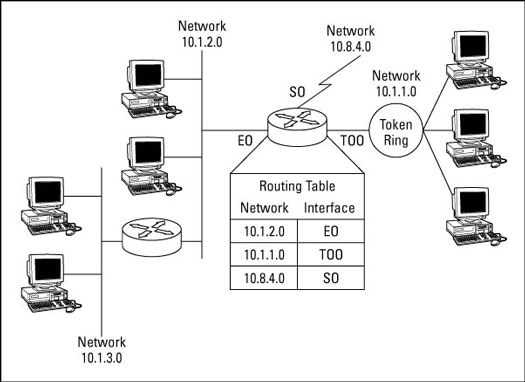
How a Router Works
| |||||||||||||||||
| |||||||||||||||||
| |||||||||||||||||

Tuesday, November 02, 2004
E-Bay Passwords
| | |||||||||
| ||||||||||
To delete temporary internet files:
Click on Tools, Internet options, and Advanced.
Scroll down till one sees empty temporary internet files when browser is closed.
Put a check mark there.
Files do not accumulate that way.
Disable Error Reporting |
|
|
| By default, WindowsXP will request to report application errors to Microsoft.
|
Monday, November 01, 2004
Cleaning your computer and your computer components and peripherals helps keep the components and computer in good working condition and helps keep the computers from spreading germs.
Depending on the environment that your computer operates in determines how often you should clean your computer case. The below list is our recommendation and may change depending upon your computers environment.
- User who does not smoke and has no pets - Clean the computer every five months.
- User who does not smoke and has pets - Clean the computer every four months.
- User who smokes but has no pets - Clean the computer every three months.
- User who smokes and has pets - Clean the computer every two months.
- Business with clean office environment - Clean the computers every five months.
- Business with clean office environment, however multiple users use each computer - Clean the computer every three months.
- Business that is a factory environment or allows smoking - Clean the computer every two months.
- School computers with young adult users - Clean the computer every three months.
- School computers with pre-teen users - Clean the computer every month. In some cases this may need to be weekly or daily.
Below is a listing of general tips that should be taken when cleaning any of the components or peripherals of a computer as well as tips to help keep a computer clean.
- Never spray or squirt any type of liquid onto any computer component. If a spray is needed spray the liquid onto a cloth and then use that cloth to rub down the component.
- When using a vacuum to suck up dirt, dust, or hair be cautious not to suck up any removable parts.
- When cleaning a component and/or the computer turn it off.
- Never get any component inside the computer or any other circuit board damp or wet.
- Be cautions when using any type of cleaning solvents, some individuals may have allergic reactions to chemicals in cleaning solvents.
- Never eat or drink around the computer.
- Limit smoking around the computer.
Although many companies have created products to help improve the process of cleaning your computer and peripherals users can also use household items to clean their computers and peripherals. Below is a listing of items you may need or want to use while cleaning your computer or computer peripherals.
Keep in mind that some components in your computer may only be able to be cleaned using a product designed for cleaning that component, if this is the case it will be mentioned in the cleaning tips.
- Cloth - A cloth is the best tool used when rubbing down a component, although paper towels can be used with most hardware we recommend using a cloth when ever possible.
- Water or rubbing alcohol - When moistening a cloth it is best to use water or rubbing alcohol. Other solvents may be bad for the plastics used with your computer.
- Vacuum - Sucking the dust, dirt, hair, cigarette particles, and other particles out of a computer can be one of the best methods of cleaning a computer. Over time these items can restrict the airflow in a computer and cause circuitry to corrode.
- Cotton swabs - Cotton swaps moistened with rubbing alcohol or water are excellent tools for wiping hard to reach areas in your keyboard, mouse, and other locations.
- Foam swabs - Whenever possible it is better to use lint free swabs such as foam swabs.
